Systemtråd undantag ej hanterat: Komplett felsökningsguide
19 februari 2026 • César Daniel Barreto
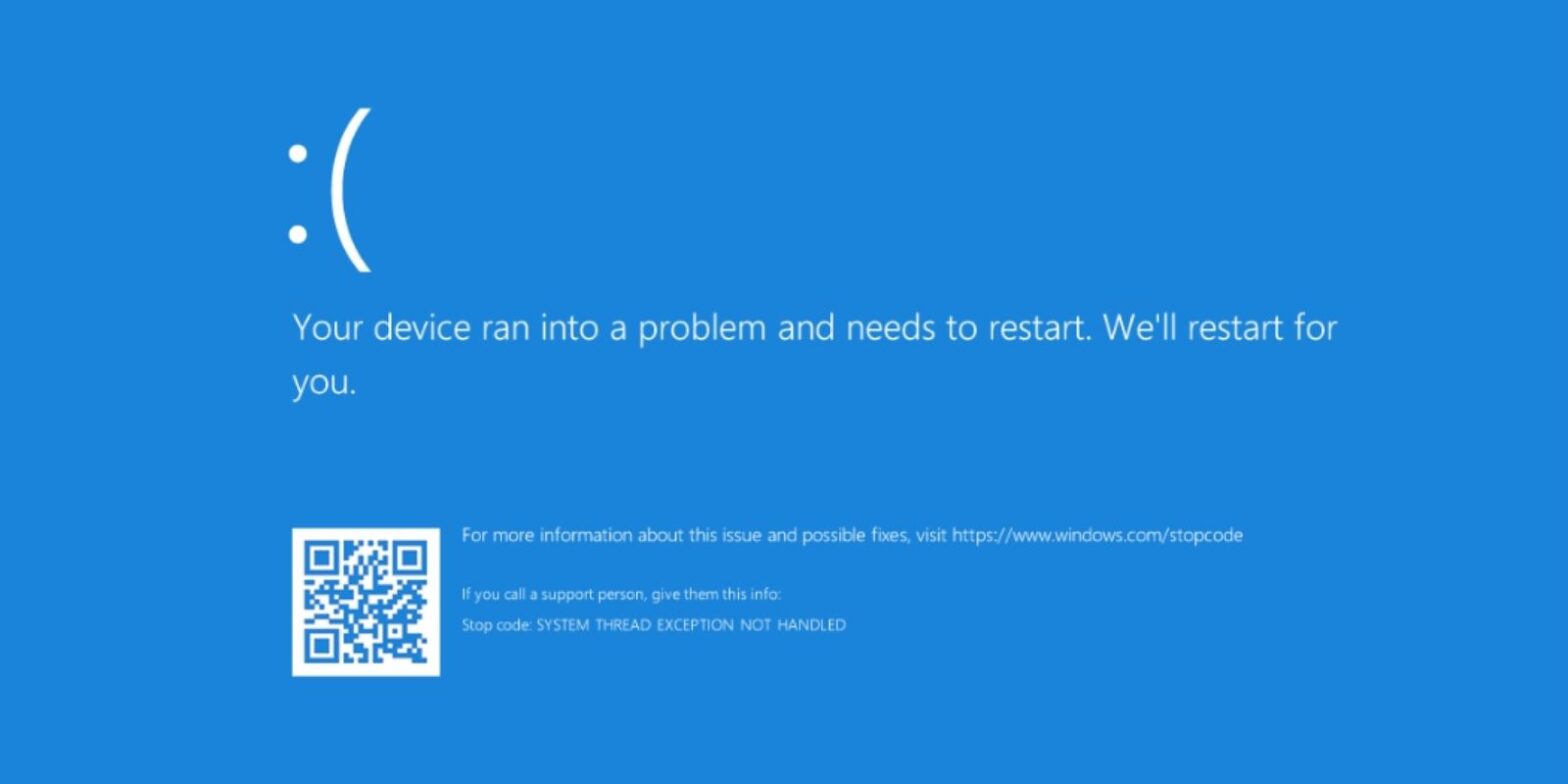
The SYSTEM_THREAD_EXCEPTION_NOT_HANDLED error is a common Blue Screen of Death (BSOD) that disrupts the normal functioning of Windows systems. This error typically arises due to faulty or outdated drivers, creating a loop that prevents the system from booting properly. While this issue can seem daunting, there are systematic approaches and solutions to resolve it effectively.
Snabbfix Sammanfattning
| Quick Fix | Beskrivning |
|---|---|
| Disconnect New Hardware | Remove recently added devices and reboot. |
| Safe Mode Access | Boot into Safe Mode to diagnose and fix issues. |
| System Restore | Revert the system to a previous stable state. |
| Update Drivers | Ensure all drivers are current and compatible. |
| Run Diagnostic Tools | Use built-in Windows tools for error checks. |
BSOD Troubleshooting
The BSOD is a critical error screen displayed by Windows when the system encounters a fatal error. The SYSTEM_THREAD_EXCEPTION_NOT_HANDLED error is one such instance, often indicating deeper issues within the system. Troubleshooting a BSOD involves identifying the root cause of the error and applying targeted solutions to resolve it.
Identifying the Cause
To effectively troubleshoot a BSOD, it is essential to identify the underlying cause. This can often be traced back to a specific driver or a recent update that introduced incompatibility. Using the boot log feature can help in tracking down the exact point of failure by recording the sequence of events leading up to the crash. This log can be accessed through the command prompt in the recovery environment.
Common Troubleshooting Steps
Boot into Safe Mode
This minimal startup option allows the system to load with only essential drivers, making it easier to identify and isolate problematic components.
System Restore
Utilize this feature to revert the system to a previous state before the error occurred, effectively undoing recent changes that might have caused the issue.
Driver Updates
Check for and install updates for all system drivers, especially those related to graphics and hardware components.
Run Diagnostic Tools
Windows offers several built-in tools, such as the Memory Diagnostic Tool, to check for RAM stability and other hardware issues.
Driver Issues
Drivers are critical components that facilitate communication between the operating system and hardware devices. Faulty or outdated drivers are a primary cause of the SYSTEM_THREAD_EXCEPTION_NOT_HANDLED error.
Identifying Faulty Drivers
The error message on the BSOD often includes the name of the driver responsible for the crash. Common culprits include graphics drivers such as nvlddmkm.sys for NVIDIA or atikmdag.sys for AMD. Identifying the problematic driver is the first step in resolving the error.
Updating Drivers
To resolve driver-related issues, it is crucial to ensure all drivers are up to date. This can be done through the Device Manager in Windows, where users can search for and install the latest drivers. Alternatively, visiting the manufacturer’s website for the latest driver releases can provide more reliable updates.
Uninstalling Problematic Drivers
If updating does not resolve the issue, uninstalling the problematic driver and reinstalling a stable version can be an effective solution. This process can also be performed in Safe Mode to prevent further crashes during the operation.
Safe Mode Access
Safe Mode is a diagnostic mode in Windows that loads only the essential drivers and services. It is a crucial tool for diagnosing and fixing issues that prevent normal booting.
Accessing Safe Mode
To enter Safe Mode on modern Windows 10 and Windows 11 systems, it is recommended to use the recovery environment. Restart the computer and interrupt the boot process three times to trigger Automatic Repair, then select “Troubleshoot” > “Advanced options” > “Startup Settings” > “Restart,” and choose the appropriate Safe Mode option.
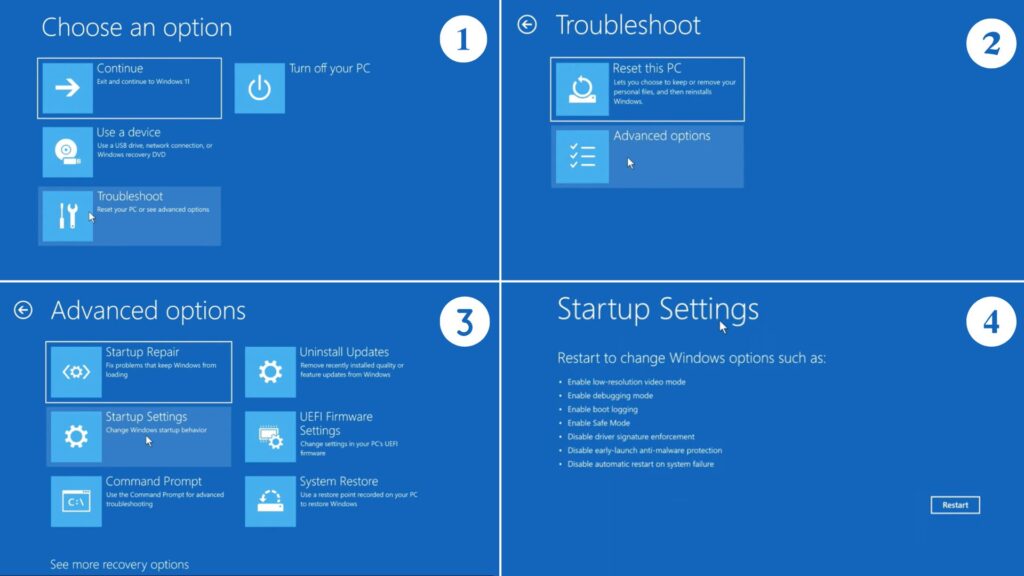
On some older systems where Fast Boot is disabled, pressing the F8 key before Windows begins to load may still open Advanced Boot Options.
Using Safe Mode for Troubleshooting
Once in Safe Mode, users can perform a variety of troubleshooting tasks, such as uninstalling problematic drivers, running system restore, and checking for malware. This environment is stable and prevents most BSOD errors, allowing for effective diagnosis and repair.
System Restore
System Restore is a Windows feature that allows users to revert their system to a previous state, undoing recent changes that may have caused instability.
Creating Restore Points
Windows automatically creates restore points during significant system changes, such as software installations or updates. Users can also manually create restore points before making changes to ensure a fallback option is available.
Performing a System Restore
To perform a system restore, access the recovery environment and select “System Restore.” Choose a restore point from the list and follow the prompts to revert the system. This process can resolve issues caused by recent changes without affecting personal files.
Command Prompt Usage
The command prompt is a powerful tool for advanced troubleshooting and system management. It is especially useful in the recovery environment when graphical tools are unavailable.
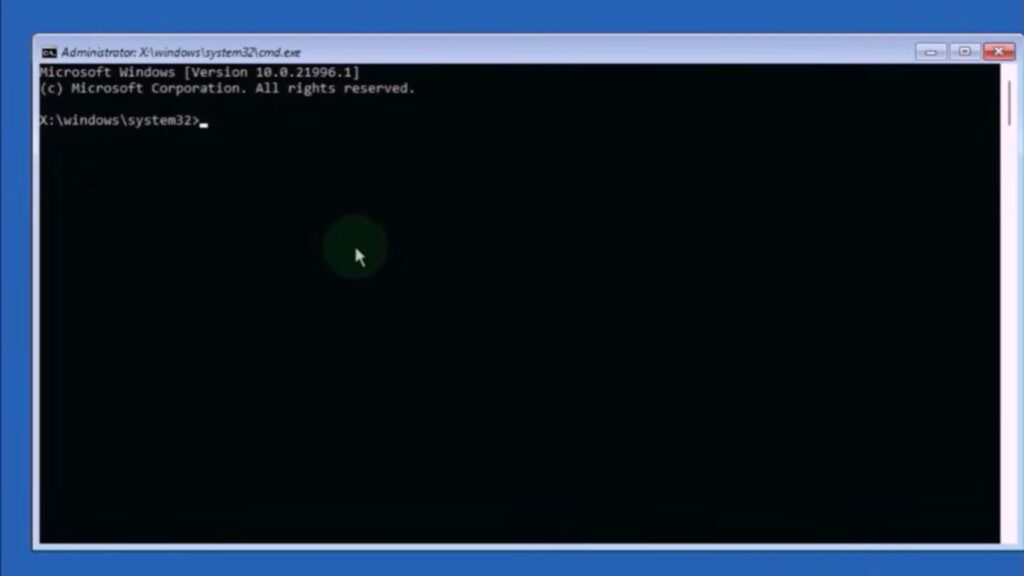
Accessing the Command Prompt
In the recovery environment, select “Troubleshoot” > “Advanced options” > “Command Prompt” to open this tool. From here, users can execute a variety of commands to diagnose and repair system issues.
Common Commands for Troubleshooting
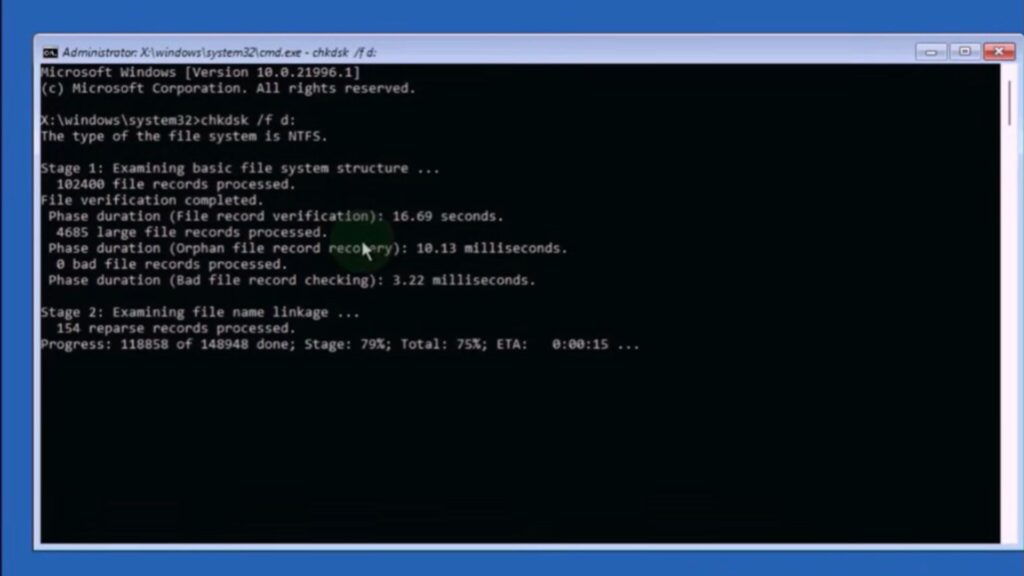
- sfc /scannow
Scans and repairs corrupted system files. - DISM /Online /Cleanup-image /RestoreHealth
Repairs the Windows image when run inside normal Windows. When using DISM in the recovery environment (WinRE), additional parameters such as specifying a source image may be required. - chkdsk /f
Checks and repairs disk errors.
These commands can help resolve issues related to corrupted system files and disk errors, which are common causes of the SYSTEM_THREAD_EXCEPTION_NOT_HANDLED error.
Hardware Diagnostics
Hardware issues can also lead to the SYSTEM_THREAD_EXCEPTION_NOT_HANDLED error. Running diagnostics on hardware components can identify and resolve these problems.
Diagnosing RAM Stability
RAM stability is crucial for system performance. The Windows Memory Diagnostic Tool can be used to check for RAM errors. Access this tool by typing “mdsched” in the Run dialog and following the prompts to restart and scan the memory.
SSD Failure
Solid State Drives (SSDs) are faster and more reliable than traditional hard drives, but they can still fail. Checking the health of an SSD can be done using third-party tools or built-in utilities like chkdsk. Ensuring the SSD firmware is up to date can also prevent compatibility issues.
Fix vs. Cause Comparison
| Lösning | Cause |
|---|---|
| Update Drivers | Outdated or incompatible drivers |
| System Restore | Recent changes causing instability |
| Safe Mode Access | Inability to boot normally |
| Run Diagnostic Tools | Hardware failures or RAM issues |
| Command Prompt Repairs | Corrupted system files |
Backup and Recovery
Before attempting any major fixes, it is crucial to backup important data. This ensures that even if the felsöknings process encounters issues, personal data remains safe. Windows offers several backup options, such as File History and System Image Backup, to protect user data.
Diagnosis and Troubleshoot
Effective diagnosis and troubleshoot strategies involve a combination of tools and methods. By systematically applying the solutions outlined above, users can address the root causes of the SYSTEM_THREAD_EXCEPTION_NOT_HANDLED error and restore their system to a stable state.
In the subsequent part of this article, we will delve deeper into advanced techniques and tools for resolving this error, ensuring a comprehensive understanding and effective resolution strategy.
Windows Recovery
When encountering the persistent issue of “system thread exception not handled,” utilizing Windows Recovery can be a crucial step. This built-in feature provides a suite of tools designed to help diagnose and resolve various system errors, including those that lead to a BSOD.
To access Windows Recovery, restart your computer and interrupt the normal boot process repeatedly until Automatic Repair loads, or access it through Settings > Update & Security > Recovery > Advanced startup. On some systems, pressing a manufacturer-specific key may open the boot menu, from which recovery options can be selected.
From here, you can choose from several options to help address the root cause of the “exception” error.
Driver Removal
One of the most effective methods to resolve the “system thread exception not handled” error involves removing problematic drivers. This is particularly relevant if the error appeared after a recent driver update. To do this, boot into Safe Mode, navigate to the Device Manager, and identify the driver causing issues. Right-click on the driver and select “Uninstall.” This action can prevent the “exception” from reoccurring by eliminating the faulty driver from the equation. If necessary, you can reinstall the driver from a trusted source or use a previous version that was stable.
Boot Log Analysis
Analyzing the boot log can provide invaluable insights into what might be causing the “exception” error. The boot log records all drivers and services that load during startup, allowing you to pinpoint any failures or anomalies. To enable boot logging, access the “Advanced Options” menu in Windows Recovery and select “Enable Boot Logging.” Once the system restarts, review the log file located at C:\Windows\ntbtlog.txt. Look for any entries marked as failed or incomplete, as these could indicate the source of the “system thread exception not handled.”
Advanced Recovery Options
For more complex cases, the “Advanced Options” menu within Windows Recovery offers additional tools. Here, you can access features like “Startup Repair,” which automatically detects and attempts to fix issues preventing Windows from starting correctly. This tool can be particularly useful if the “exception” error is preventing normal boot processes. Additionally, the “Command Prompt” option can be used for more hands-on troubleshooting, allowing experienced users to execute specific commands to diagnose and repair system issues.
Update Uninstallation
If the “system thread exception not handled” error began after a recent Windows update, uninstalling the update might resolve the issue. Navigate to the “Advanced Options” menu and select “Uninstall Updates.” Choose to remove either the latest quality update or the latest feature update, depending on when the error started occurring. This process can reverse any changes that may have introduced the “exception” error, allowing your system to function correctly once again.
System Backup
Regularly backing up your system is a proactive measure that can mitigate the impact of critical errors like “system thread exception not handled.” By creating a “restore point,” you can ensure that you have a fallback option should troubleshooting efforts fail. To create a “restore point,” search for “Create a restore point” in the Windows search bar and follow the prompts. This action captures a snapshot of your system’s current state, which can be restored if needed. Having a recent backup can significantly ease the repair process, providing peace of mind and a clear path to recovery.
Error Diagnosis
Diagnosing the specific cause of the “system thread exception not handled” error requires a systematic approach. Begin by reviewing any recent changes to your system, such as new software installations or hardware upgrades. Pay particular attention to drivers from manufacturers like Corsair, Intel, and Nvidia, as these are common culprits in driver-related BSODs. Additionally, consider running hardware diagnostics to check for issues with components like RAM, as faulty memory can also trigger the “exception” error. By methodically examining each potential factor, you can narrow down the root cause and implement an effective solution.
Vanliga frågor
How to fix the system thread exception not handled?
To fix the “system thread exception not handled” error, start by booting into Safe Mode and uninstalling any recent driver updates. Use Windows Recovery to access “Advanced Options” and run “Startup Repair” if necessary. Additionally, consider uninstalling recent Windows updates or restoring your system to a previous “restore point.”
What does SYSTEM_THREAD_EXCEPTION_NOT_HANDLED mean?
“SYSTEM_THREAD_EXCEPTION_NOT_HANDLED” is a BSOD error indicating that a system thread generated an exception that the error handler did not catch. This often points to driver issues or incompatible hardware.
Can RAM cause system thread exception not handled?
Yes, faulty RAM can cause the “system thread exception not handled” error. Running a memory diagnostic test can help determine if your RAM is the source of the issue.
Do you press F8 or F12 for Safe Mode?
The key to press for Safe Mode can vary depending on your system configuration. Generally, F8 or F12 is used to access the boot menu, where you can select Safe Mode.
Viktiga slutsatser
Addressing the “system thread exception not handled” error requires a multifaceted approach, incorporating both software and hardware diagnostics. Utilizing Windows Recovery and its “Advanced Options” can provide essential tools for resolving this issue. Regular system backups and careful driver management, particularly for components from Corsair, Intel, and Nvidia, can prevent future occurrences. By understanding the potential causes and employing systematic troubleshooting, users can effectively mitigate this error and maintain system stability.

César Daniel Barreto
César Daniel Barreto är en uppskattad cybersäkerhetsskribent och expert, känd för sin djupgående kunskap och förmåga att förenkla komplexa ämnen inom cybersäkerhet. Med lång erfarenhet inom nätverkssäkerhet nätverkssäkerhet och dataskydd bidrar han regelbundet med insiktsfulla artiklar och analyser om de senaste cybersäkerhetstrender och utbildar både yrkesverksamma och allmänheten.
 Swedish
  English
  German
  Danish
  Italian
  Romanian
  Thai
Thai  Vietnamese
  Japanese
  Dutch
Dutch  Korean
  Arabic
  Hungarian