How to Fix Slow DNS Lookup
February 06, 2026 • César Daniel Barreto

Slow DNS lookups add unnecessary delay before your browser even begins loading a webpage. A typical DNS resolution takes 20–120 ms, but misconfigured or underperforming DNS can push that well beyond 100 ms — sometimes into multi-second territory. DNS lookup time directly affects Time to First Byte (TTFB), a Core Web Vitals metric. Google’s research shows bounce probability jumps from 32% at 3 seconds to 90% at 5 seconds page load time. The good news: most causes are straightforward to diagnose and fix.
Contents
- What Causes Slow DNS
- Step 1: Diagnose the Problem
- Step 2: Restart Your Hardware
- Step 3: Switch to a Faster DNS Provider
- Step 4: Flush Your DNS Cache
- Step 5: Fix IPv6 Fallback Delay
- Step 6: Check VPN, Antivirus & Ghost Adapters
- Step 7: Configure DNS over HTTPS (DoH)
- Step 8: Run a Local DNS Cache Server
- Step 9: Fix Browser-Specific DNS Issues
- Step 10: Optimize DNS Records (Website Owners)
- Step 11: Reduce Third-Party Domains (Website Owners)
- Step 12: Implement DNS Prefetching (Web Developers)
- Quick-Reference Troubleshooting Table
What Causes Slow DNS
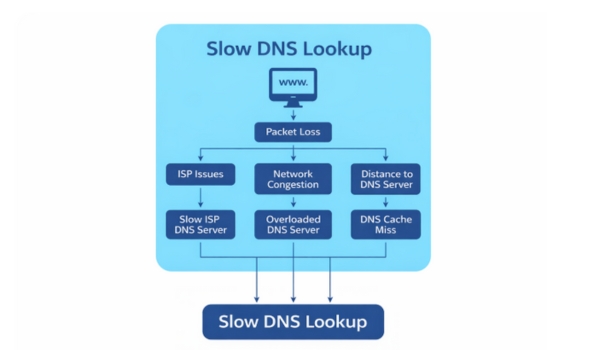
Several factors contribute to DNS latency:
- Slow ISP-provided DNS servers — Default resolvers from your ISP are often significantly slower than public alternatives. Free DNS from registrars like GoDaddy and Namecheap is also typically slow.
- Geographic distance — The farther the DNS server is from you, the longer the round-trip takes.
- IPv6 fallback delay — Modern operating systems prioritize IPv6 (AAAA) lookups. If your ISP has poor IPv6 support, your device hangs for up to 5 seconds before falling back to IPv4.
- Excessive DNS records — Unused or outdated A, CNAME, and TXT records add overhead to lookups.
- CNAME chaining — Multiple redirects (CNAME → CNAME → A record) force sequential lookups that stack latency.
- No DNS caching — Without caching, the same DNS queries repeat on every page load.
- Overloaded nameservers — Hosting providers with under-provisioned nameservers introduce delays.
- Network congestion and non-optimal routing — Even a nearby server can be slow if the path to reach it is congested.
- VPN and proxy interference — VPNs route DNS through their own servers, which can be slower. Some leak DNS queries outside the tunnel.
- Ghost network adapters — Phantom adapters from VPN software, virtual machines, or Docker hold stale DNS configurations that interfere with resolution.
- Antivirus/firewall DNS filtering — Some security software (Norton, Kaspersky, Bitdefender) intercepts DNS queries, adding latency.
- Browser-level DNS overrides — Chrome, Firefox, and Edge can silently override your OS DNS settings with their own built-in DNS over HTTPS (DoH) configuration.
- Too many third-party domains — Each unique domain your website loads requires a separate DNS lookup that adds to total page load time.
- No secondary DNS configured — Without a fallback DNS server, the system hangs waiting for a timeout if the primary is down or slow.
Step 1: Diagnose the Problem
Before fixing anything, confirm DNS is actually the bottleneck.
Using dig (Linux/macOS)
The dig command is the primary tool for measuring DNS response time:
# Query a specific DNS server and check response time
dig example.com @8.8.8.8
# Full iterative trace showing each hop’s latency
dig example.com +trace
The output includes a Query time field (e.g., 34 ms). If this exceeds 100 ms, the DNS layer is a performance problem. Ideally, aim for under 50 ms.
Using nslookup (Windows)
For Windows users, nslookup is the default DNS diagnostic tool:
# Basic DNS lookup
nslookup example.com
# Query a specific DNS server
nslookup example.com 8.8.8.8
# Check nameservers for a domain
nslookup -type=ns example.com
If nslookup returns results quickly but browsing feels slow, the issue is likely browser-level DNS, IPv6 fallback, or VPN interference — not the DNS server itself.
Using ping and traceroute
Test raw network latency to your DNS server to separate network issues from DNS application issues:
# Linux/macOS
ping -c 3 8.8.8.8
traceroute 8.8.8.8
# Windows
ping 8.8.8.8
tracert 8.8.8.8
If ping shows high latency but dig to the same server is proportionally slow, the issue is network distance, not the DNS server itself.
DNS Benchmark Tools
- GRC DNS Benchmark — A Windows utility that tests dozens of DNS servers and ranks them by speed from your location. Highly recommended for finding the fastest resolver for your specific network.
- Namebench — Google-owned tool that hunts down the fastest DNS servers available for your computer.
- DNSPerf — An open-source tool for benchmarking authoritative DNS servers under load.
- dnsdiag (dnsping, dnstraceroute, dnseval) — A Python toolset for DNS measurement. Install via
pip3 install dnsdiag. - dnsspeedtest.site — A browser-based tool that benchmarks 20+ DNS providers using DNS over HTTPS without installing software.
Step 2: Restart Your Hardware
The simplest fix that’s often overlooked. Restarting your router clears its internal DNS cache and can resolve routing issues. Many ISP routers have a built-in DNS forwarder that can become overloaded or stale over time.
- Unplug your router for 30 seconds, then plug it back in.
- Restart your PC, phone, or tablet.
- If using a separate modem, restart that too.
This clears temporary glitches and forces fresh DNS connections. Try this before any other fix.
Step 3: Switch to a Faster DNS Provider
This is the single most impactful fix for most users. Replace your ISP’s default DNS with a faster public resolver. Always configure both a primary and secondary DNS — without a fallback, the system hangs waiting for a timeout if the primary is down or slow.
| Provider | Primary | Secondary | Strengths |
|---|---|---|---|
| Cloudflare | 1.1.1.1 | 1.0.0.1 | Often the fastest globally; strong privacy policy; does not support EDNS Client Subnet (more aggressive caching). |
| Google Public DNS | 8.8.8.8 | 8.8.4.4 | Extremely reliable; high uptime; supports EDNS Client Subnet for better CDN routing. |
| Quad9 | 9.9.9.9 | 149.112.112.112 | Blocks known malicious domains; strong security focus. |
| OpenDNS | 208.67.222.222 | 208.67.220.220 | Fast query processing; content filtering options; parental controls. |
Note on Cloudflare vs Google: Research by ThousandEyes found Cloudflare delivers DNS resolution on par with ISP servers (avg 23.4 ms) while Google averaged 48.8 ms. However, Google’s EDNS Client Subnet support can improve CDN cache hit rates. Choose based on your priority: raw speed (Cloudflare) or CDN optimization (Google).
How to Change DNS on Windows
Open Settings → Network & Internet → Ethernet (or Wi-Fi). Click Edit next to DNS server assignment. Switch to Manual, enable IPv4, and enter your preferred DNS addresses.
Alternatively, via Command Prompt:
netsh interface ip add dns name=”Ethernet” addr=1.1.1.1 index=1
netsh interface ip add dns name=”Ethernet” addr=1.0.0.1 index=2
How to Change DNS on macOS/Linux
On macOS, go to System Settings → Network → your connection → DNS and add the resolver IPs. On Linux, edit /etc/resolv.conf or configure via your network manager:
# Linux: Edit /etc/resolv.conf
sudo nano /etc/resolv.conf
# Add these lines:
nameserver 1.1.1.1
nameserver 1.0.0.1
Change DNS on Your Router
For network-wide changes, update the DNS settings in your router’s admin panel (usually at 192.168.1.1 or 192.168.0.1). This affects all devices on the network — you only configure it once instead of on every device.
Step 4: Flush Your DNS Cache
Stale or corrupted cache entries can cause resolution failures or redirect to wrong IPs. Flushing forces fresh lookups:
| OS | Command |
|---|---|
| Windows 10/11 | ipconfig /flushdns |
| macOS (Ventura+) | sudo dscacheutil -flushcache; sudo killall -HUP mDNSResponder |
| Linux (systemd) | sudo systemd-resolve --flush-caches or sudo resolvectl flush-caches |
Don’t forget browser-level caches. In Chrome, navigate to chrome://net-internals/#dns and click “Clear host cache”. In Firefox, the DNS cache clears when you restart the browser or can be cleared via about:networking#dns.
Step 5: Fix IPv6 Fallback Delay
This is one of the most common hidden causes of slow DNS that standard guides ignore. Modern operating systems prioritize IPv6 (AAAA) lookups over IPv4. If your ISP has poor or no IPv6 support, your device waits up to 5 seconds for an IPv6 response before falling back to IPv4. This happens on every new connection.
How to Diagnose
# Test IPv6 connectivity
ping -6 google.com
# If this times out or takes seconds, IPv6 is the problem
# Compare with IPv4:
ping -4 google.com
How to Fix
Option 1: Disable IPv6 on the network adapter (if your ISP doesn’t support it)
- Windows: Network adapter properties → uncheck “Internet Protocol Version 6 (TCP/IPv6)”
- Linux: Add
net.ipv6.conf.all.disable_ipv6 = 1to/etc/sysctl.conf - macOS: System Settings → Network → your connection → TCP/IP → Configure IPv6 → Link-local only
Option 2: Prefer IPv4 without fully disabling IPv6 — on Linux, edit /etc/gai.conf and uncomment precedence ::ffff:0:0/96 100.
Step 6: Check VPN, Antivirus & Ghost Adapters
VPN and Proxy DNS Interference
VPNs often route DNS through their own servers, which can be slower than your local resolver. Some VPNs also leak DNS queries outside the tunnel, causing inconsistent behavior. To diagnose:
- Visit dnsleaktest.com while connected to your VPN to check for DNS leaks.
- Temporarily disconnect the VPN and test DNS speed. If it’s faster without VPN, your VPN’s DNS is the bottleneck.
- Many VPNs allow you to configure custom DNS servers — use Cloudflare or Google instead of the VPN provider’s DNS.
Antivirus / Firewall DNS Filtering
Some antivirus software (Norton, Kaspersky, Bitdefender) intercepts and filters DNS queries, adding latency. Security firewalls can also block or throttle DNS traffic to unknown servers. To test:
- Temporarily disable your antivirus web protection and test DNS speed.
- Check your firewall rules for any DNS-related blocking (outbound port 53 or 853).
- If DNS is faster with antivirus disabled, add an exception for your preferred DNS servers.
Ghost Network Adapters
Old or phantom network adapters from VPN software, virtual machines (VMware, VirtualBox), or Docker can hold stale DNS configurations that interfere with resolution. Windows is particularly prone to this.
To fix on Windows:
# Show hidden devices in Device Manager
# Open CMD as admin:
set devmgr_show_nonpresent_devices=1
devmgmt.msc
# In Device Manager: View → Show hidden devices
# Under Network Adapters, remove any grayed-out/phantom adapters
Step 7: Configure DNS over HTTPS (DoH)
DNS over HTTPS (DoH) encrypts DNS queries inside HTTPS, preventing ISP snooping, DNS spoofing, and man-in-the-middle attacks. However, it can also cause problems if misconfigured.
Benefits
- Encrypts DNS traffic — ISPs and network admins cannot see your DNS queries.
- Prevents DNS spoofing and cache poisoning attacks.
- Uses port 443 (standard HTTPS), so it’s rarely blocked by firewalls.
Potential Issues
- Added latency: The HTTPS/TLS handshake adds overhead on the first connection. Subsequent queries are faster due to connection reuse.
- Conflicts with local DNS filters: DoH bypasses Pi-hole, local DNS servers, and parental controls.
- VPN conflicts: DoH can route DNS outside the VPN tunnel if not configured correctly.
- Split DNS issues: Enterprise environments using internal DNS for local resources may break when DoH is enabled.
- Browser override: Chrome, Firefox, and Edge have built-in DoH that can silently override your OS DNS settings.
How to Enable DoH
Windows 11: Settings → Network → Ethernet/Wi-Fi → DNS → set “Preferred DNS encryption” to “Encrypted only (DNS over HTTPS)” or “Encrypted preferred, unencrypted allowed.”
Chrome/Edge: Settings → Privacy → “Use secure DNS” → select provider (Cloudflare, Google, etc.).
Firefox: Settings → Privacy & Security → “Enable DNS over HTTPS” → select provider. Firefox defaults to Cloudflare for US users.
How to Disable DoH (When Troubleshooting)
- Windows 11: Flip DNS encryption back to “Unencrypted only.”
- Chrome/Edge: Toggle “Use secure DNS” to Off.
- Firefox: Set to “Off” or type
about:configand setnetwork.trr.mode = 5.
DNS over TLS (DoT) vs DoH
DoT is an alternative that encrypts DNS on a dedicated port (853) instead of mixing it with HTTPS traffic on port 443. DoT is easier to identify and block/manage on enterprise networks. DoH blends in with regular web traffic, making it harder to filter. For home users, either works. For network admins who need visibility, DoT is generally preferred.
Step 8: Run a Local DNS Cache Server
For power users and network admins, running a local caching DNS resolver eliminates round-trips entirely for repeat queries. Instead of hitting a remote DNS server every time, your local cache responds instantly.
Popular Options
- Unbound — A validating, recursive, caching DNS resolver. Prevents any single public DNS server from having all your records. Supports DoT for upstream encryption.
- dnsmasq — Lightweight DNS forwarder and DHCP server. Easy to set up on Linux routers.
- Pi-hole — Network-wide ad blocker that also serves as a DNS cache. Blocks ads and trackers at the DNS level, reducing third-party DNS lookups for all devices.
Quick Setup: Unbound on Linux
# Install Unbound
sudo apt install unbound
# Basic config: /etc/unbound/unbound.conf
server:
interface: 127.0.0.1
port: 53
access-control: 127.0.0.0/8 allow
cache-min-ttl: 300
cache-max-ttl: 86400
prefetch: yes
# Forward to Cloudflare over TLS
forward-zone:
name: “.”
forward-tls-upstream: yes
forward-addr: 1.1.1.1@853
forward-addr: 1.0.0.1@853
# Start and enable
sudo systemctl enable unbound
sudo systemctl start unbound
# Set your system to use local resolver
# Edit /etc/resolv.conf:
nameserver 127.0.0.1
With prefetch: yes, Unbound refreshes frequently-accessed records before they expire, so you almost never experience a cold cache miss.
Step 9: Fix Browser-Specific DNS Issues
Browsers have their own DNS behavior that can override your OS settings:
Chrome / Edge
- Built-in “Secure DNS” (DoH) can override OS-level DNS. Check: Settings → Privacy → “Use secure DNS.”
- Chrome maintains its own DNS cache. Clear it at
chrome://net-internals/#dns→ “Clear host cache.” - Also clear socket pools:
chrome://net-internals/#sockets→ “Flush socket pools.”
Firefox
- Firefox has its own Trusted Recursive Resolver (TRR) that defaults to Cloudflare DoH for US users. This completely bypasses your OS DNS settings.
- Check status:
about:networking#dnsto see cached DNS entries and which resolver is active. - To disable TRR: Settings → Privacy & Security → DNS over HTTPS → Off.
- To force-disable via config:
about:config→ setnetwork.trr.modeto5.
All Browsers
- Extensions (ad blockers, privacy tools) can intercept and redirect DNS. Test in incognito/private mode with extensions disabled.
- If DNS works via
digornslookupbut the browser is slow, the issue is browser-level — not system DNS.
Step 10: Optimize DNS Records (Website Owners)
If you manage a website and its DNS is slow for visitors, these optimizations apply:
Reduce and Clean Up Records
Remove unused A, CNAME, TXT, and MX records. Every extra record adds overhead during resolution. Audit your DNS zone file quarterly.
Eliminate CNAME Chaining
Instead of CNAME → CNAME → A record, point domains directly to the final IP via an A record. Many DNS providers also support CNAME flattening (also called ALIAS records), which resolves the chain server-side and returns the IP in a single query.
Set Appropriate TTL Values
- Stable records: Use higher TTLs (3600–86400 seconds) to maximize caching benefits.
- Records that change often: Use TTLs of 300–600 seconds (5–10 minutes).
- Avoid setting TTL to 86400 (24 hours) unless the record truly never changes, as this delays propagation of updates.
DNSSEC Considerations
DNSSEC adds cryptographic signature verification to DNS responses, preventing cache poisoning and spoofing. However, it adds processing time to each lookup. The trade-off is marginal latency increase for significantly better security. Enable DNSSEC if security is a priority; be aware it can slightly increase resolution times, especially on slower authoritative nameservers.
Use a Premium DNS Provider / CDN
Free DNS from domain registrars is typically slow. Premium DNS providers (Cloudflare, AWS Route 53, Dyn, DNS Made Easy) have massive, globally distributed anycast infrastructure designed for low-latency responses. A CDN like Cloudflare or Akamai has its own DNS infrastructure with globally distributed points of presence, cutting lookup times for users worldwide.
Step 11: Reduce Third-Party Domains (Website Owners)
Each unique third-party domain your website loads requires a separate DNS lookup. These add up fast — a site loading resources from 7 external domains can accumulate over 1 second of DNS time alone.
How to Reduce
- Audit external resources: Use browser DevTools (Network tab) or WebPageTest to identify every unique domain your site calls.
- Self-host where possible: Download third-party fonts, scripts, and assets and host them on your origin server or CDN. This eliminates their DNS lookups entirely.
- Consolidate CDN domains: Use a single CDN subdomain instead of multiple external hosts.
- Remove unused plugins and trackers: Each plugin that loads external JavaScript adds at least one DNS lookup plus the script itself.
Defer Non-Critical JavaScript
Third-party JavaScript often loads additional external domains. Deferring non-critical JS delays those DNS lookups until after the main page renders:
<!– Defer non-critical third-party scripts –>
<script src=”https://analytics.example.com/tracker.js” defer></script>
<!– Async for scripts that don’t depend on page load order –>
<script src=”https://ads.example.com/ad.js” async></script>
Using defer or async prevents these scripts from blocking the main page render while still loading them. The DNS lookups for these domains still happen, but they no longer block the user from seeing content.
Step 12: Implement DNS Prefetching (Web Developers)
Modern browsers support dns-prefetch and preconnect resource hints that resolve DNS for third-party domains before the user needs them:
<!– DNS prefetch for non-critical third-party domains –>
<link rel=”dns-prefetch” href=”https://fonts.googleapis.com”>
<link rel=”dns-prefetch” href=”https://analytics.example.com”>
<!– Preconnect for critical third-party domains (DNS + TCP + TLS) –>
<link rel=”preconnect” href=”https://cdn.example.com”>
<link rel=”preconnect” href=”https://api.example.com”>
Use preconnect for your most critical connections (it handles DNS + TCP + TLS) and dns-prefetch for everything else. Preconnect can save 100–500 ms per connection, while DNS prefetch saves 20–120 ms. Don’t overuse preconnect — each one opens a connection that consumes resources.
Quick-Reference Troubleshooting Table
| Symptom | Likely Cause | Fix |
|---|---|---|
| All sites load slowly at first visit | Slow ISP DNS resolver | Switch to Cloudflare (1.1.1.1) or Google (8.8.8.8). Restart router first. |
| 5-second delay before pages start loading | IPv6 fallback delay | Disable IPv6 on network adapter or set OS to prefer IPv4. |
| Specific domain won’t resolve | Stale DNS cache | Flush DNS cache on OS and browser. |
| DNS works in terminal but browser is slow | Browser DoH override or extension interference | Check Chrome/Firefox secure DNS settings. Test in incognito with extensions disabled. |
| DNS slow only when VPN is connected | VPN DNS routing | Configure custom DNS in VPN settings or check for DNS leaks at dnsleaktest.com. |
| Intermittent slow DNS with antivirus running | Antivirus DNS filtering | Temporarily disable web protection. Add DNS server exceptions if faster. |
| dig +trace shows one hop taking >200 ms | Slow authoritative nameserver | Switch to DNS provider with CDN architecture or use CNAME flattening. |
| High DNS times in PageSpeed / WebPageTest | Too many third-party domains | Add dns-prefetch / preconnect hints. Reduce external domains. Defer non-critical JS. |
| DNS works but intermittently slow | Overloaded nameservers or ghost adapters | Benchmark with GRC DNS Benchmark. Remove phantom network adapters. Consider secondary DNS. |
| DNS slow only from certain regions | Geographic distance | Use a DNS provider with global anycast (Cloudflare, Route 53). |
| Local network domains not resolving with DoH on | DoH bypassing local DNS | Disable DoH in browser or configure split DNS. Use DoT instead for enterprise. |
| Pages slow after recent software installation | New VPN/VM added ghost network adapter | Check Device Manager for phantom adapters. Remove stale DNS configurations. |

César Daniel Barreto
César Daniel Barreto is an esteemed cybersecurity writer and expert, known for his in-depth knowledge and ability to simplify complex cyber security topics. With extensive experience in network security and data protection, he regularly contributes insightful articles and analysis on the latest cybersecurity trends, educating both professionals and the public.
 English
  German
  Danish
  Italian
  Swedish
  Romanian
  Thai
Thai  Vietnamese
  Japanese
  Dutch
Dutch  Korean
  Arabic
  Hungarian