How to Reset Starlink Router (Gen 1, Gen 2, Gen 3 & Mini)
February 24, 2026 • César Daniel Barreto
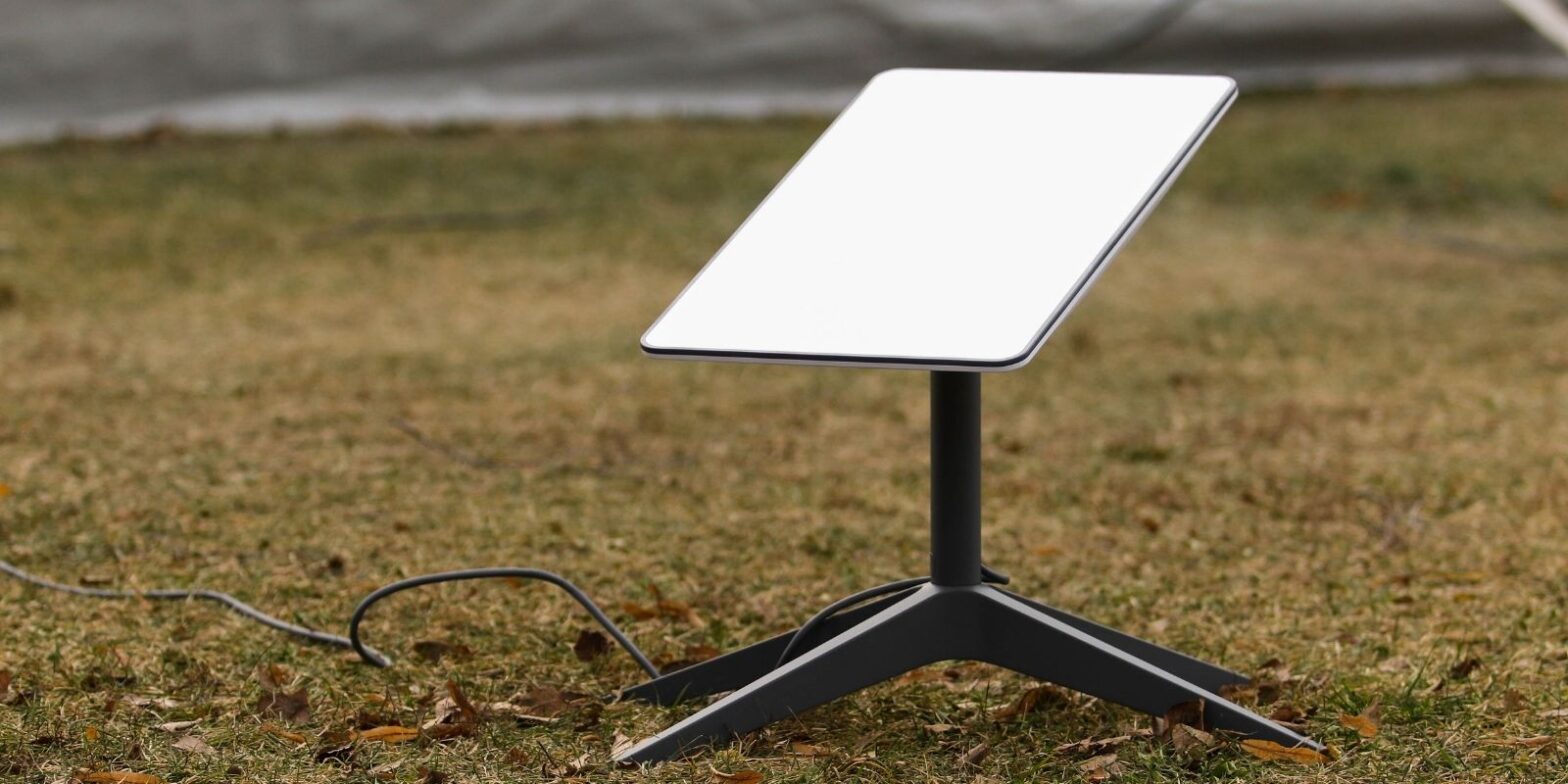
Knowing how to perform a factory reset on your Starlink router is essential when persistent internet problems appear, WiFi credentials are forgotten, or a new setup is required. A factory reset restores the router to its original configuration, removing custom WiFi names, passwords, and network settings. The exact reset method depends on the hardware generation, so identifying whether you have Gen 1, Gen 2, Gen 3, or Starlink Mini is the first step before proceeding.
It is important to understand what a factory reset does and does not do. Resetting the router will erase local settings and network configuration, but it does not cancel your Starlink service, remove account ownership, or change dish alignment. The internet connection itself remains tied to your subscription.
What a Factory Reset Actually Changes
When you perform a factory reset on a Starlink router, the device clears stored WiFi credentials, password data, mesh pairings, and custom configuration settings. After the reset completes, the router reboots and begins broadcasting the default “STARLINK” WiFi network again. From there, you must use the Starlink app to complete setup and create a new password.
If you are only experiencing temporary internet instability, a simple reboot may resolve the issue without erasing settings. A reboot involves disconnecting power once and reconnecting it, allowing the router to restart without performing a full factory reset. For deeper troubleshooting, however, a factory reset is often required.
Resetting a Gen 1 Starlink Router
The Gen 1 Starlink router includes a physical reset button located on the bottom of the hardware. With the router powered on, pressing and holding the reset button for approximately ten to fifteen seconds initiates the factory reset process. The LED indicator will blink during reset and eventually return to a steady state once configuration has been cleared. After the reboot completes, the device returns to default settings and is ready for a fresh setup through the app.
Resetting a Gen 2 Starlink Router
Early Gen 2 rectangular routers do not include a visible reset button. Instead, they rely on a timed power cycle sequence to trigger a factory reset. To perform this reset, unplug the router from power and plug it back in six times in quick succession, waiting about two to three seconds between each cycle. If executed correctly, the router will reboot and restore factory settings.
Because timing is important, the power cycle must be consistent. If the reset does not activate, repeating the sequence more precisely usually resolves the issue. Some newer hardware revisions may behave slightly differently, so checking Starlink support documentation can help confirm the correct reset method for your specific device.
Resetting a Gen 3 Starlink Router
The Gen 3 router reintroduced a physical reset button, typically located beneath a small protective cap near the LAN port. With the router powered on, press and hold the reset button for about ten seconds. The LED will flash during the reset process, and the router will reboot automatically. Once the LED stabilizes, the factory reset has completed and the WiFi network returns to default configuration.
Resetting Starlink Mini
Starlink Mini includes a dedicated reset button on the rear of the device. Holding the reset button for several seconds while powered on triggers the factory reset sequence. The LED may blink rapidly before the device reboots. After the reset, the router begins broadcasting the default WiFi network and requires setup through the Starlink app.
Using the Starlink App to Perform a Factory Reset
If the router is online and linked to your account, the Starlink app provides a direct method to perform a factory reset. After connecting to the WiFi network, open the app, navigate to router settings, and select the reset option. This method is often the simplest.
However, if the router is offline or placed in bypass mode, the reset option may not appear. In bypass mode, manual reset methods using the reset button or power cycle are required. Bypass mode can limit configuration visibility within the app, which sometimes leads users to believe the device is malfunctioning when it simply needs a manual reset.
Resetting Mesh Nodes
For users running a Starlink mesh network, each mesh node must be reset individually if deeper troubleshooting is needed. The reset method depends on the hardware generation of the node. Some mesh units use the power cycle method, while others include a physical reset button. Ensuring the main router is functioning correctly before resetting mesh nodes prevents unnecessary configuration conflicts.
Common Issues After Reset
After a factory reset, the most common issue is failure to reconnect to the default WiFi network. Since the router reverts to broadcasting “STARLINK,” devices must reconnect to that network before setup can continue. The app will then guide you through creating a new password and completing configuration.
Another frequent scenario involves internet connection confusion. Users sometimes assume that resetting the router restores internet service automatically. In reality, the router reset only clears local settings.
If internet service remains unstable, additional troubleshooting or contact with Starlink support may be necessary. Reliable connectivity is particularly important for bandwidth-intensive activities such as streaming high-definition media on browser-based platforms like 123movies.us, where interruptions or latency spikes can significantly degrade the user experience.
Firmware update behavior can also cause confusion. After a reset, the router may automatically check for update packages and install them before finalizing configuration. This can temporarily delay full internet access.
When to Reset Your Starlink Router
A factory reset is appropriate when WiFi password recovery is impossible, persistent network issues remain unresolved after a reboot, or the router is being prepared for relocation or transfer. Because reset clears all configuration, it should be used intentionally rather than casually.
Understanding the correct reset method for Gen 1, Gen 2, Gen 3, or Starlink Mini hardware ensures the process is smooth and avoids unnecessary delays in restoring internet connectivity. Whether performed through the app, via reset button, or using a timed power cycle, the goal remains the same: returning the Starlink router to a clean configuration state so reliable service can resume.

César Daniel Barreto
César Daniel Barreto is an esteemed cybersecurity writer and expert, known for his in-depth knowledge and ability to simplify complex cyber security topics. With extensive experience in network security and data protection, he regularly contributes insightful articles and analysis on the latest cybersecurity trends, educating both professionals and the public.
 English
  German
  Danish
  Italian
  Swedish
  Romanian
  Thai
Thai  Vietnamese
  Japanese
  Dutch
Dutch  Korean
  Arabic
  Hungarian