How to Reset PS5 Controller the Right Way (Complete Troubleshooting Guide)
February 20, 2026 • César Daniel Barreto
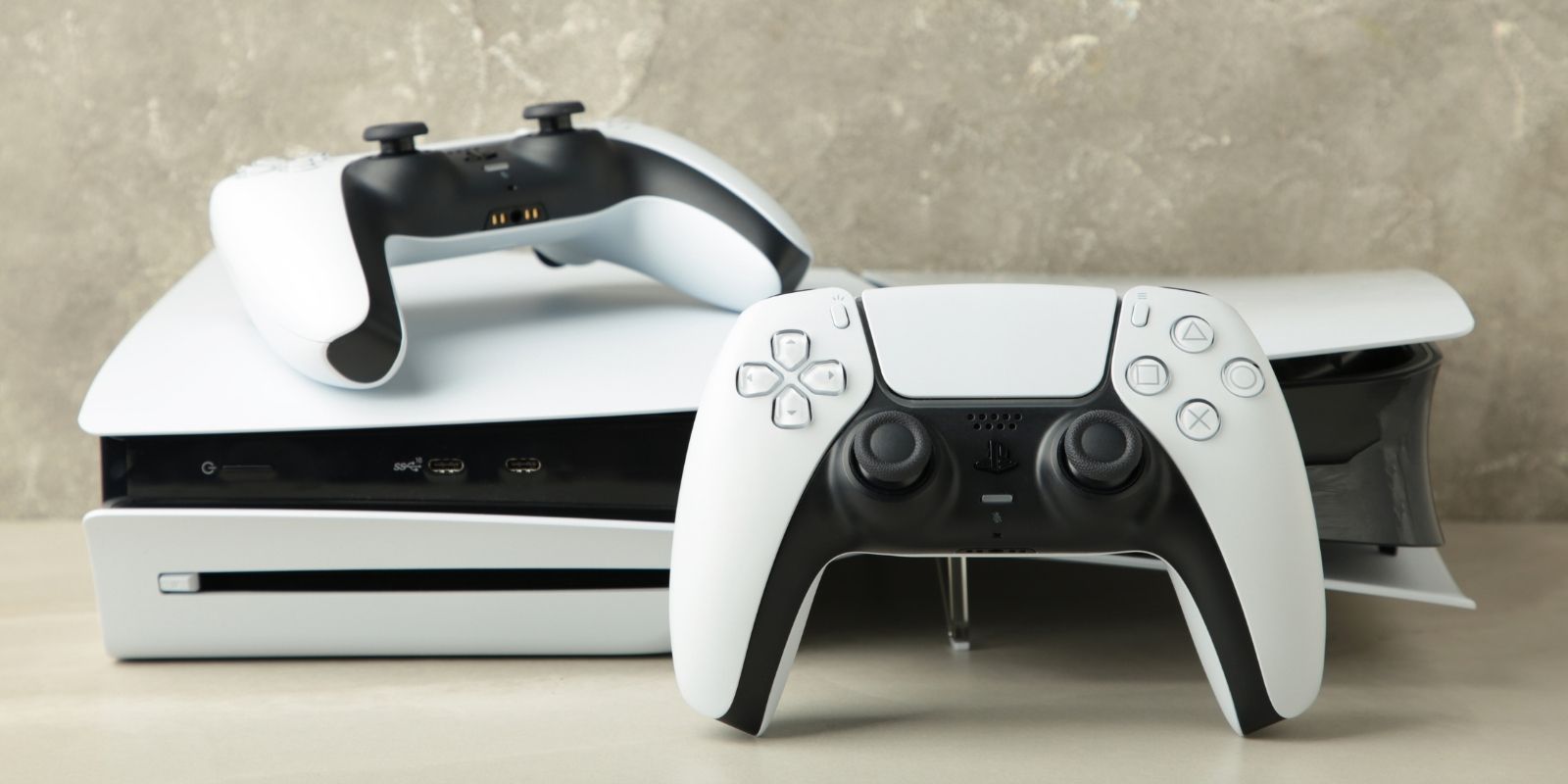
If your DualSense isn’t syncing, keeps disconnecting, or shows joystick drift, knowing how to reset PS5 controller properly can fix most issues in minutes. Connectivity problems, unresponsive buttons, or drift can interrupt gameplay, but most of these issues can be resolved through a simple hardware or software reset. This guide walks you step by step through the correct reset methods so you can quickly restore your controller and get back to gaming.
Quick Fix Summary
Before diving into detailed solutions, here’s a quick summary of common fixes for PS5 controller issues:
- USB Connection Check: Ensure the USB cable is functioning properly and fully charge the controller before attempting to connect.
- Software Reset: Turn off the PS5 and use another controller to navigate to Settings > Accessories > Turn Off Controller. Press the PS button to reactivate.
- Hardware Reset: Use a pin to press the reset hole on the back of the controller for at least 5 seconds. Reconnect via USB and press the PS button to pair.
- Safe Mode Reset: Hold the PS5 power button until you hear a second beep, connect the controller via USB, and follow troubleshooting options.
- Bluetooth Re-Pairing: Delete the controller from the Bluetooth list and re-pair it.
Resetting the PS5 Controller
Resetting the PS5 controller is essential for resolving connectivity problems, drift, pairing failures, or general malfunction. There are two main reset types: hardware reset and software reset.
Hardware Reset (Factory Reset Method)
A hardware reset is often the first step in troubleshooting a PS5 controller. This involves using a small tool, like a pin or paperclip, to press the reset button located on the back of the controller near the L2 button.
Press and hold the reset button for at least five seconds. Then reconnect the controller to the PS5 console using a USB cable and press the PS button to pair it.
Important: A hardware reset does not erase firmware updates. It clears pairing data and restores default connection settings.
This method is especially useful if:
- The controller won’t sync
- The PS5 controller is not connecting
- There are persistent Bluetooth issues
- Drift persists after basic troubleshooting
Software Reset
If the hardware reset does not resolve the issue, a software reset might be necessary. This involves turning off the PS5 console and using another controller to navigate to the Settings menu. From there, go to Accessories, select the problematic controller, and choose the option to turn it off.
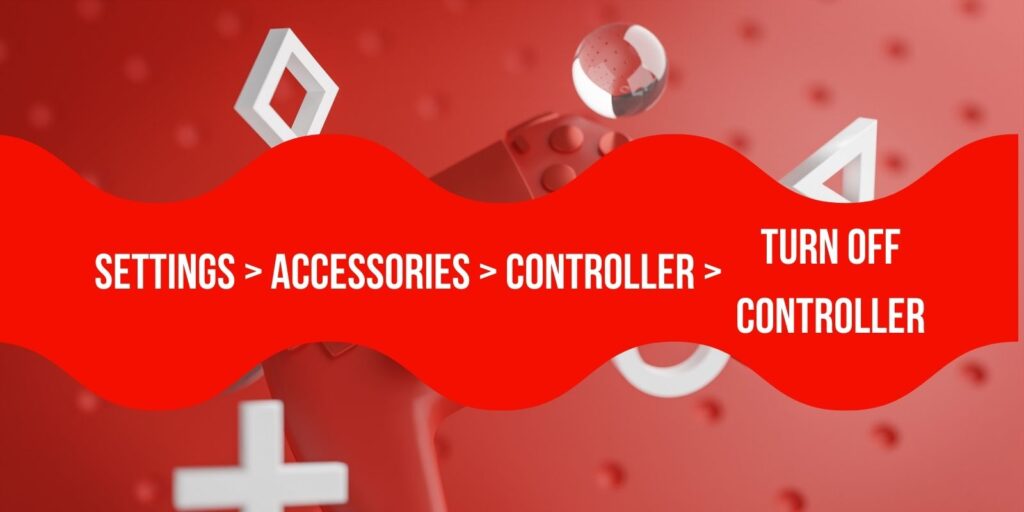
Once the controller is turned off, press the PS button to reactivate it. This method is less invasive than a hardware reset and can often resolve minor issues without the need to completely reset the controller.
Connectivity Issues
Connectivity issues are a common problem faced by PS5 users. These issues can manifest as intermittent disconnections, failure to pair wirelessly, or the controller not being recognized by the console. Understanding the causes of these issues and how to resolve them is crucial for maintaining a seamless gaming experience.
Bluetooth Pairing
Bluetooth pairing is a common method for connecting a PS5 controller to the console. However, interference from other devices or a mismatch in firmware versions can cause the controller to lose its connection. To resolve this, ensure that the controller is fully charged and that there are no other Bluetooth devices nearby that could interfere with the signal. If the problem persists, try deleting the controller from the Bluetooth list on the console and re-pairing it.
- Go to Settings > Accessories > Bluetooth Accessories
- Delete the controller
- Re-pair via USB
USB Connection
Using a USB connection is another way to connect a PS5 controller to the console. This method is often more stable than Bluetooth pairing and can help resolve connectivity issues. To use a USB connection, ensure that the cable is functioning properly and that the controller is fully charged. If the controller still fails to connect, try using a different USB cable or port on the console.
Stable connectivity is particularly important not only for gaming sessions but also when navigating media applications or browser-based streaming platforms such as spacemov.co, where input lag or disconnections can significantly disrupt the viewing experience.
Unresponsive Buttons
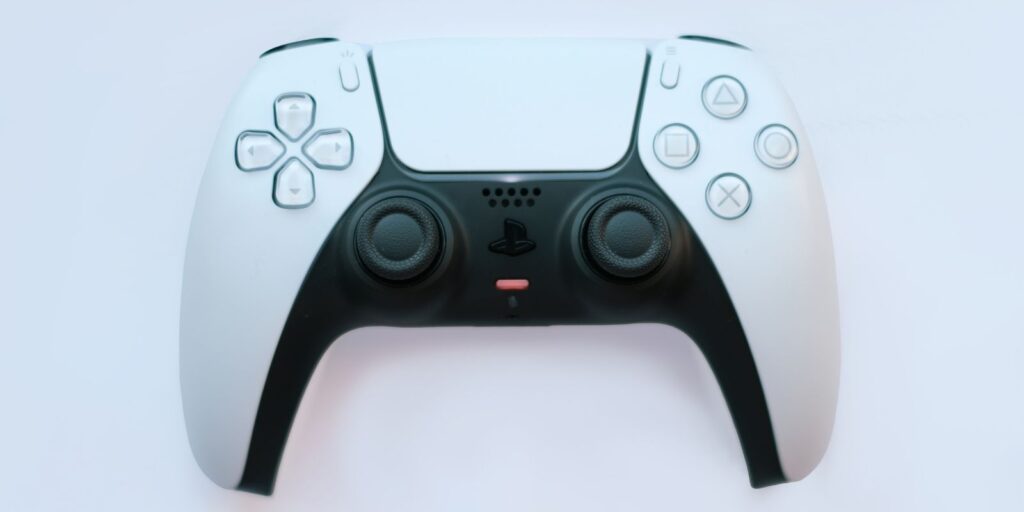
Unresponsive buttons can be a frustrating issue for PS5 users. This problem can occur due to a variety of reasons, including hardware malfunctions or software glitches. Identifying the cause of the issue and implementing the appropriate solution is key to restoring functionality to the controller.
Troubleshooting Steps
To troubleshoot unresponsive buttons, start by performing a hardware reset as described earlier. If this does not resolve the issue, try a software reset. If the problem persists, consider updating the PS5 firmware, as outdated software can sometimes cause compatibility issues with the controller. Additionally, ensure that the controller is clean and free of debris, as dirt or dust can sometimes interfere with button functionality.
Factory Reset
A factory reset is a more drastic measure that can be taken when other troubleshooting methods fail. This process will erase all custom configurations and restore the controller to its original settings. A factory reset is recommended when preparing the controller for resale or when persistent bugs cannot be resolved through other means.
Performing a Factory Reset
To perform a factory reset, follow the hardware reset procedure by pressing the reset button on the back of the controller for at least five seconds. After the reset, reconnect the controller to the PS5 console via USB and press the PS button to pair it. This will restore the controller to its factory settings and should resolve any lingering issues.
Reset Button Location
Knowing the location of the reset button on the PS5 controller is crucial for performing a hardware reset. This button is located on the back of the controller, near the L2 button. It is a small, recessed button that can be pressed using a pin or paperclip. Pressing this button for at least five seconds will reset the controller to its factory settings, allowing you to resolve various issues.
USB Connection vs. Wireless Connection
Choosing between a USB connection and a wireless connection depends on personal preference and the specific issues you are facing with your PS5 controller. Each method has its advantages and disadvantages, which are outlined below.
Wireless vs USB Connection
| Feature | Wireless Connection | USB Connection |
|---|---|---|
| Stability | Can be affected by interference from other devices | Generally more stable and reliable |
| Convenience | Allows for greater freedom of movement | Requires proximity to the console |
| Battery Usage | Drains the controller’s battery | Charges the controller while in use |
| Setup | Requires pairing process | Plug-and-play simplicity |
| Troubleshooting | May require re-pairing or interference checks | May require checking cable and port functionality |
Controller Sync
Syncing the PS5 controller with the console is an essential step in ensuring that it functions properly. This process involves establishing a connection between the controller and the console, allowing them to communicate effectively.
Syncing Process
To sync the controller with the PS5 console, first ensure that the controller is fully charged. Then, connect it to the console using a USB cable and press the PS button. The console should recognize the controller and establish a connection. If the controller fails to sync, try using a different USB cable or port, or perform a hardware reset to resolve any underlying issues.
Troubleshooting Steps
When faced with issues related to the PS5 controller, following a systematic troubleshooting process can help identify and resolve the problem. This involves checking for common issues, performing resets, and ensuring that all connections are functioning properly.
Comprehensive Troubleshooting Checklist
- Check Battery and Connections: Ensure that the controller is fully charged and that all connections are secure.
- Perform Hardware Reset: Use a pin to press the reset button on the back of the controller for at least five seconds.
- Attempt Software Reset: Turn off the PS5 console and use another controller to navigate to the Settings menu and turn off the problematic controller.
- Update Firmware: Ensure that the PS5 console is running the latest firmware version, as updates can resolve compatibility issues.
- Test in Different Environment: Move the console and controller to a different location to rule out interference from other devices.
By following these steps, you can effectively troubleshoot and resolve most issues related to the PS5 controller, ensuring a seamless gaming experience.
Frequently Asked Questions
How do you reset a PlayStation 5 controller?
To reset a PlayStation 5 controller, locate the small reset button on the back of the controller. Use a paperclip or similar tool to press and hold the button for about five seconds. This will reset the controller and can resolve many connectivity and performance issues.
How to reset PS5 controller drift?
To address PS5 controller drift, start by resetting the controller using the reset button on the back. If the issue persists, consider recalibrating the analog sticks through the PS5 controller settings. In some cases, cleaning the analog stick area might also help.
How do I fix an unresponsive PS5 controller?
If your PS5 controller is unresponsive, try resetting it using the reset button on the back. Ensure the controller is charged and check the USB or wireless connection. If the problem continues, it may require further troubleshooting or professional repair.
How do I reset a controller?
Resetting a controller typically involves pressing a small reset button located on the back of the device. Use a paperclip or similar tool to press and hold the button for a few seconds. This action will reset the controller and may resolve various issues.
Key Takeaways
Understanding the various features and functionalities of your PS5 controller is crucial for maintaining optimal performance. From using a paperclip tool for resetting to customizing controller settings, each step plays a vital role in ensuring your gaming experience is seamless. Investing in quality gaming accessories can further enhance your setup, making your PlayStation 5 sessions more enjoyable and efficient.

César Daniel Barreto
César Daniel Barreto is an esteemed cybersecurity writer and expert, known for his in-depth knowledge and ability to simplify complex cyber security topics. With extensive experience in network security and data protection, he regularly contributes insightful articles and analysis on the latest cybersecurity trends, educating both professionals and the public.
 English
  German
  Danish
  Italian
  Swedish
  Romanian
  Thai
Thai  Vietnamese
  Japanese
  Dutch
Dutch  Korean
  Arabic
  Hungarian