Home Wireless Router Setup and Cisco IOS Configuration Basics
december 15, 2022 •
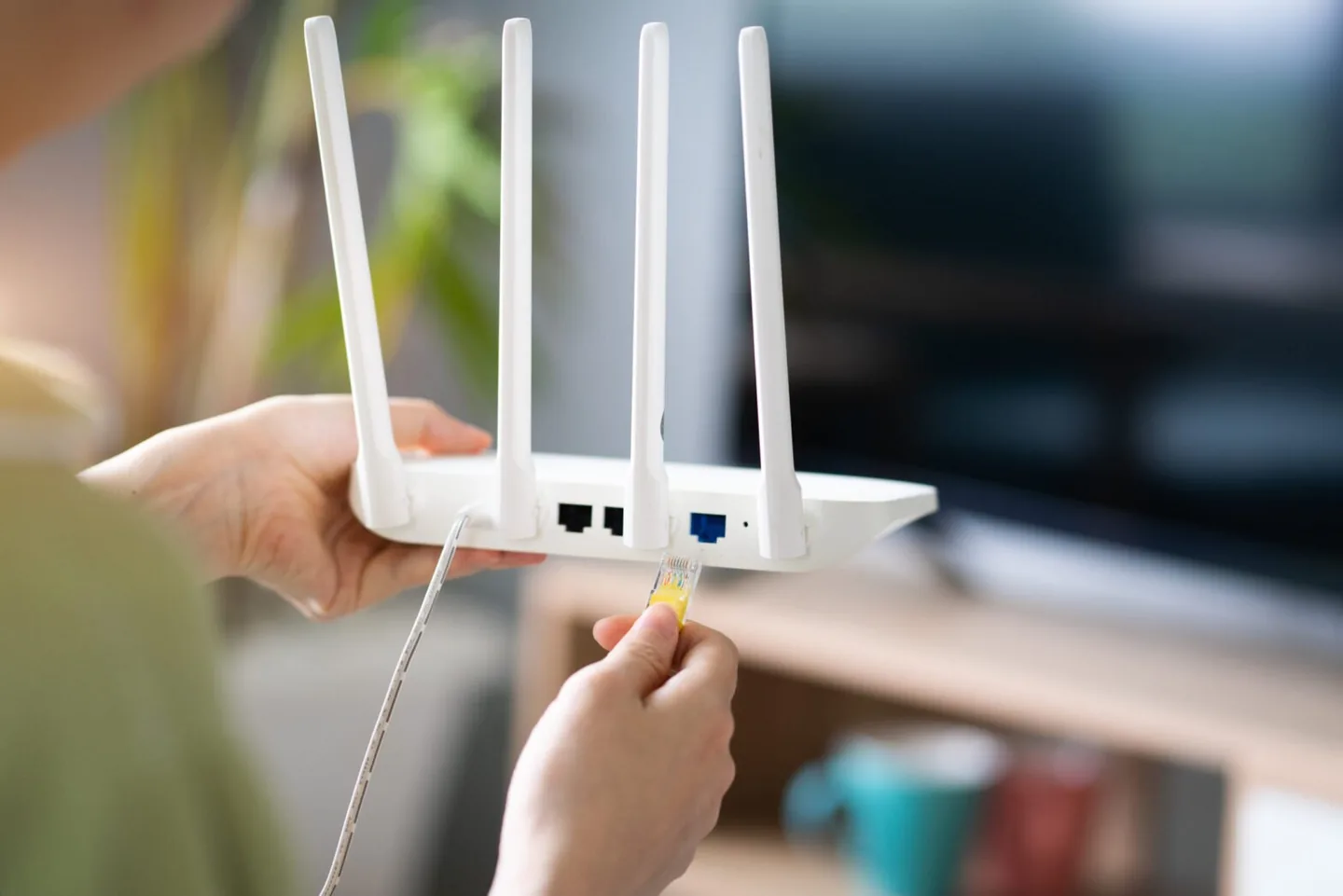
A home wireless router connects devices to your local network and routes traffic to your internet connection. This guide starts with choosing and setting up a home router, then retains a separate Cisco IOS lab walkthrough for readers learning command-line networking.
Which wireless router should you choose?
Start with your internet service and the devices you actually use. Check whether your provider requires its own gateway, whether you need a separate modem, and which Ethernet connections your computers or access points need. For a larger home, consider where an access point or mesh node can connect; a faster advertised wireless speed does not resolve every coverage problem.
For secure routers for home use, compare the manufacturer’s support period, update instructions, access controls and documentation before buying. Check the exact model and hardware revision rather than relying on a brand-wide claim. NIST’s consumer router security profile explains why router security affects the wider home network.
Set up your home network router
- Identify the internet/WAN port and connect it as the provider’s instructions describe. Use a computer connected to the router while completing setup.
- Use the manufacturer’s documented app or local administration address. The administration page belongs to your router; an unrelated public “router login” website cannot log you into it.
- Complete the model-specific setup, save the new administrator credentials, and check the connected-device list.
- Test a local wired connection and a wireless connection separately. This helps distinguish an internet-service fault from Wi-Fi coverage or authentication trouble.
For the security checklist, read how to protect your home Wi-Fi. If you need to locate a gateway, see the router administration address guide.
Cisco IOS lab: configuration basics
The following existing walkthrough uses older Cisco IOS examples in a network simulator. It is an educational lab, not a production hardening checklist or a universal home-router interface. Commands and available algorithms depend on the platform and supported release. Example passwords in screenshots are not suitable for real devices.
One commonality that stands out when discussing Cisco network routers and switches: is the renowned Internetwork Operating System (IOS). This powerful “engine” is what powers all of these devices, ensuring their successful operation. This article will primarily center on Cisco IOS and analyze how to manipulate it. Before that occurs, though, I’d like you to be aware of the two distinct approaches used when operating with Cisco IOS: either through a Command Line Interface (CLI) or Graphical User Interface (GUI).
Kommandoradsgränssnittet (CLI) är en sofistikerad metod för att konfigurera IOS-enheter. Genom att använda CLI kan vi ange exakta kommandon som kommer att orsaka det önskade beteendet. Därför kommer vi att ha fullständig kontroll och åtkomst till våra Routrar eller Switchar.
GUI (Grafiskt användargränssnitt) erbjuder ett mycket mer användarvänligt tillvägagångssätt för att hantera enheter som dessa. Ofta förlitar vi oss på det när vi etablerar små nätverksapparater som Hemma-Wi-Fi-routrar. Denna sektion kommer att fördjupa sig i hur användare kan få tillgång till Cisco IOS (versioner 15.2 eller 12.4) genom Kommandoradsgränssnittet för effektiv drift.
Introduktion till CLI
Grundläggande Routerkonfigurationer
Now it’s time to dive into the exciting bits of this article and begin with a Cisco Router setup. Moreover, we will utilanvänd en nätverkssimulator för att etablera vår nätverksmiljö.
To ensure that our Cisco Router is up and running, here are some critical settings we’ll configure:
- Värdnamn: namnet på enheten.
- Lösenord: säkert krypterade eller kommunicerade i ett öppet, okrypterat format.
- IP-adresser: inom gränssnitten.
Fjärråtkomst: easily administer your network devices through SSH connections (Telnet is unencrypted).
a) Användaråtkomstnivåer i Cisco IOS
De har utvecklat tre åtkomstnivåer med distinkta aktiviteter tillgängliga för varje användare av säkerhetsskäl.
- Verifiera din anslutning till internet genom att köra kommandon som ping eller traceroute. (>)
- Get an inside look into what’s actually happening with the device. (#)
- För att göra några ändringar. (config)#
Vid anslutning till en Cisco-enhet som en Router, Switch eller Brandvägg, kommer du att beviljas användare exec-läge (>) – the primary access level. With this user exec access level, you can only perform basic commands such as ping and traceroute.
To access a greater set of commands and privileges, it’s essential to enter the following command: Router>enable. This will allow you to ascend the ladder and upgrade your level of control.
Vi har nått den andra åtkomstnivån: privilegierat läge – R1#. Here you can observe every action taken with the equipment (through various show commands), yet you cannot make any changes.
Router>aktiveraRouter#To create alterations to the device, we would have to advance our access level up an additional notch – reaching a commanding level known as globalt konfigurationsläge. Denna upphöjda status ger oss större möjligheter och privilegier än tidigare.
Router#konfigurera terminalRouter(konfig)#By accessing the Cisco device’s global configuration mode, you can make any desired alterations with complete control – akin to having Windows Administrator or root user access on Linux.
To ensure you’re prepared for any challenge, here are a few commands that I highly suggest familiarizing yourself with: If you want to save time and typing effort while still ensuring accuracy, we’ve got the perfect solution for composing longer commands.
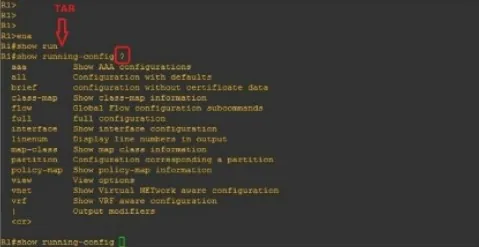
When you type “R1#show run” and hit the TAB key, it will autocomplete your command. Furthermore, if you enter a question mark (?), any subsequent commands will be displayed on-screen.
b) Välja ett enhetsnamn (Värdnamn)
För att ändra namnet på en Router eller Switch, behöver du bara ange detta kommando: (du kommer att se det i nästa bild)
Router(config)#värdnamn ROUTER_NAMEROUTER_NAMN(konfig)#c) Säkra åtkomst till Routern
To protect your Router against unauthorized access, let’s look into how we can set up a password in privilege mode (#). Follow this straightforward process to complete the task:
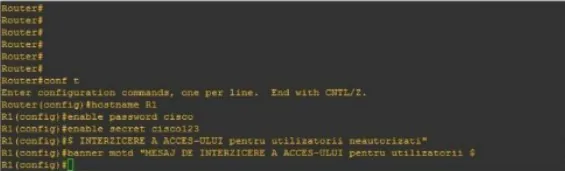
Router(config)#värdnamn R1R1(config)#enable password cisco ellerR1(config)#aktivera hemligt cisco123Genom att använda detta kommando kommer en varningsbanner att ställas in för alla som försöker få åtkomst till enheten, vilket varnar dem för potentiella konsekvenser.
R1(config)#banner motd "OTILLÅTEN ÅTKOMST NEKAD"If your query is regarding the distinctions between an “enable password”, and a “secret enable,” you’ve come to the right place. Here’s what sets them apart:
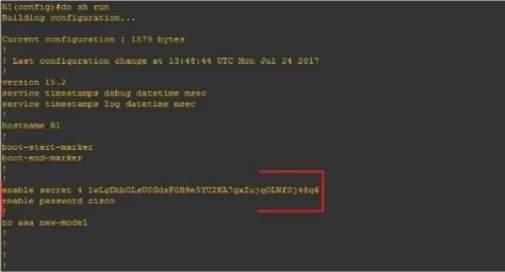
En konfiguration (#enable secret) är krypterad medan den andra (#enable password) förblir okrypterad.
Let’s begin by configuring the Router for network access (reachability) using the following topology:
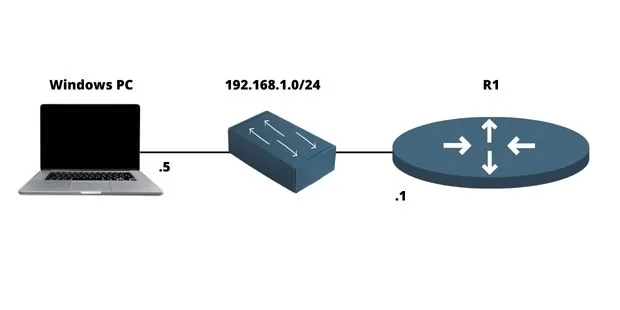
d) Konfigurera en IP-adress på Routern
En Router är ett ovärderligt verktyg som gör det möjligt för oss att sömlöst sammankoppla flera nätverk genom olika portar, vanligtvis två eller tre. Vi hänvisar till en port som det fysiska utrymmet där en kabel kan anslutas. När det gäller dess motsvarande logiska sida identifierar vi det som ett gränssnitt.
För att sammanfatta:
- Port = Fysisk
- Gränssnitt = Logisk
Till exempel kommer vi att konfigurera en IP (logisk) adress på gränssnittet och fysiskt ansluta det till en port via kabel.
För att någon kommunikation ska kunna ske inom nätverket kräver dessa gränssnitt en IP-adress och måste vara aktiverade, vilket betyder slå PÅ. Som illustrerat i figuren kan du enkelt konfigurera en IP-adress på ett nätverksgränssnitt:
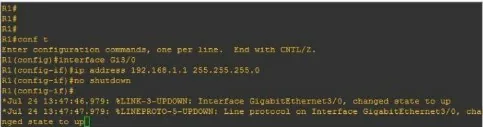
R1(config)#gränssnitt FastEthernet0/0R1(konfig-if)#ip adress 192.168.1.1 255.255.255.0R1(config-if)#ingen avstängningf) Konfigurera fjärråtkomst på en Router (Telnet, SSH)
Telnet
Telnet sends session data without encryption. This historical lab example illustrates its configuration; use SSH for administration of real devices.
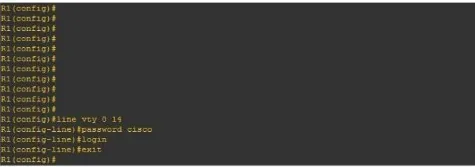
R1(config)#rad vty 0 14R1(config-line)#lösenord ciscoR1(config-line)#logga inTo get started, we’ll need to enter our virtual lines (a total of 15), set the password (“Cisco”), and then initiate the Telnet process #login.
SSH
To safely connect to a local area network or Internet device remotely, SSH is the ideal protocol. To configure this on Cisco machines, it’s necessary to take certain steps:
- Etablera ett personligt inlogg och lösenord.
- Etablera ett Domännamn
- För att säkerställa maximal säkerhet är det viktigt att generera offentliga och privata nyckelkombinationer.
- För att möjliggöra den virtuella linjeprocessen (vty), använd kommandot #login local.
I figuren nedan kan du se ett exempel på SSH-konfigurationen på en Cisco Router:
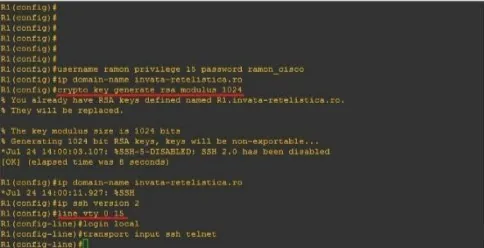
R1(config)#användarnamn admin privilegium 15 lösenord admincisco321R1(config)#ip domännamn min.hem.labR1(config)#crypto key generate rsa modulus 2048R1(konfig)#ip ssh version 2R1(config)rad vty 0 15R1(config-line)#inloggning lokalR1(config-line)#transport input sshSammanfattningsvis
Routern är en väsentlig device in any computer network because it interconnects multiple networks together. It has different networking protocols enabled (like RIP and OSPF) that assist him with the interconnection process. It also offers many different configurations for security purposes (like passwords on Virtual lines). In this article, we’ve learned how to set up an IP address on the Router, as well as for remote access (Telnet & SSH). We’ve also learned about some of the most important configurations en nätverksadministratör bör veta.
SSH configuration reference
Allowing SSH alone on virtual terminal lines prevents Telnet access. Check supported authentication and cryptographic settings for your actual release in Cisco’s SSH configuration documentation. Keep a console or another authorised recovery path while changing remote access settings.

César Daniel Barreto är en uppskattad cybersäkerhetsskribent och expert, känd för sin djupgående kunskap och förmåga att förenkla komplexa ämnen inom cybersäkerhet. Med lång erfarenhet inom nätverkssäkerhet nätverkssäkerhet och dataskydd bidrar han regelbundet med insiktsfulla artiklar och analyser om de senaste cybersäkerhetstrender och utbildar både yrkesverksamma och allmänheten.
 Swedish
  English
  German
  Danish
  Italian
  Romanian
  Thai
Thai  Vietnamese
  Japanese
  Dutch
Dutch  Korean
  Arabic
  Hungarian