Home Wireless Router Setup and Cisco IOS Configuration Basics
Dicembre 15, 2022 •
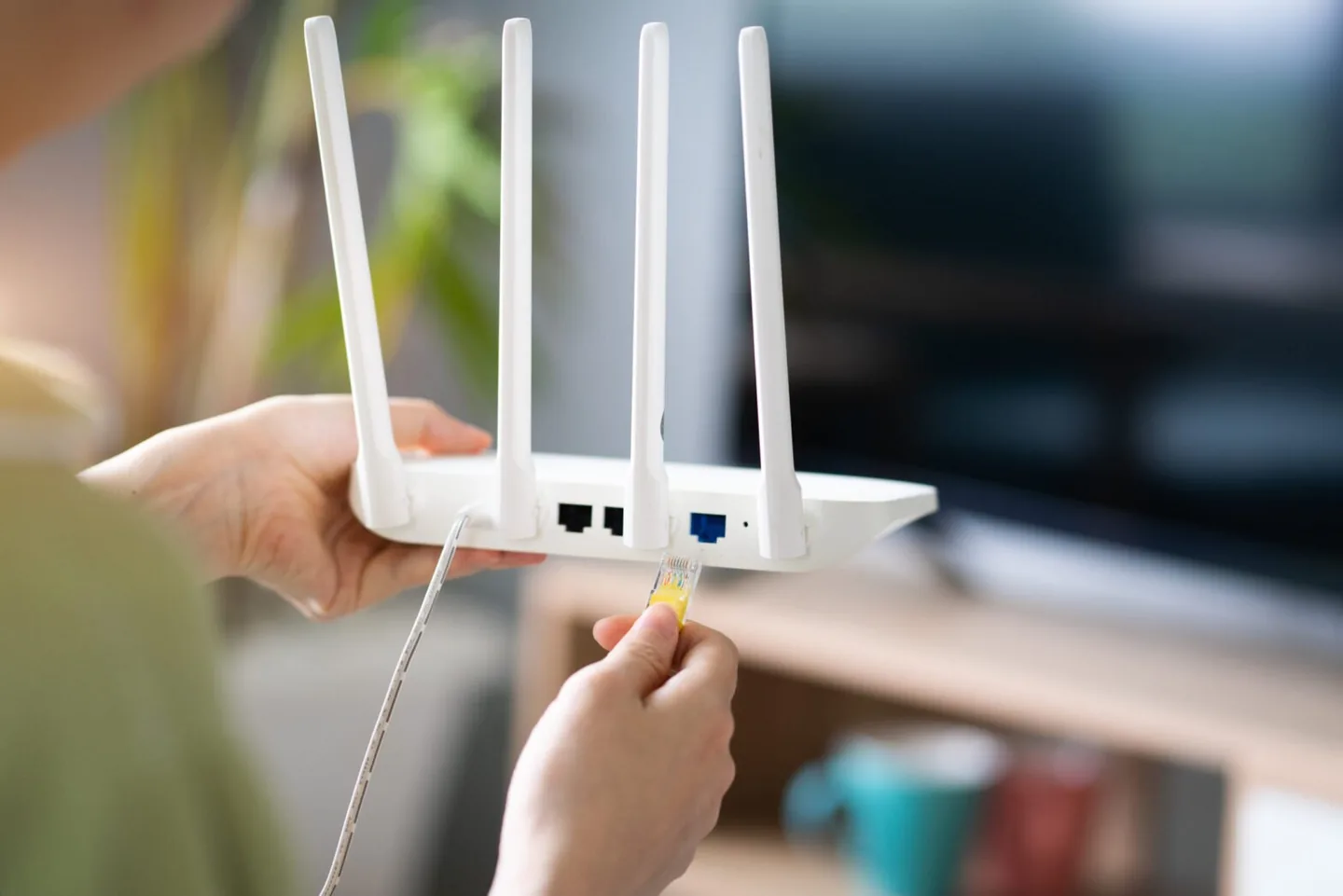
A home wireless router connects devices to your local network and routes traffic to your internet connection. This guide starts with choosing and setting up a home router, then retains a separate Cisco IOS lab walkthrough for readers learning command-line networking.
Which wireless router should you choose?
Start with your internet service and the devices you actually use. Check whether your provider requires its own gateway, whether you need a separate modem, and which Ethernet connections your computers or access points need. For a larger home, consider where an access point or mesh node can connect; a faster advertised wireless speed does not resolve every coverage problem.
For secure routers for home use, compare the manufacturer’s support period, update instructions, access controls and documentation before buying. Check the exact model and hardware revision rather than relying on a brand-wide claim. NIST’s consumer router security profile explains why router security affects the wider home network.
Set up your home network router
- Identify the internet/WAN port and connect it as the provider’s instructions describe. Use a computer connected to the router while completing setup.
- Use the manufacturer’s documented app or local administration address. The administration page belongs to your router; an unrelated public “router login” website cannot log you into it.
- Complete the model-specific setup, save the new administrator credentials, and check the connected-device list.
- Test a local wired connection and a wireless connection separately. This helps distinguish an internet-service fault from Wi-Fi coverage or authentication trouble.
For the security checklist, read how to protect your home Wi-Fi. If you need to locate a gateway, see the router administration address guide.
Cisco IOS lab: configuration basics
The following existing walkthrough uses older Cisco IOS examples in a network simulator. It is an educational lab, not a production hardening checklist or a universal home-router interface. Commands and available algorithms depend on the platform and supported release. Example passwords in screenshots are not suitable for real devices.
One commonality that stands out when discussing Cisco network routers and switches: is the renowned Internetwork Operating System (IOS). This powerful “engine” is what powers all of these devices, ensuring their successful operation. This article will primarily center on Cisco IOS and analyze how to manipulate it. Before that occurs, though, I’d like you to be aware of the two distinct approaches used when operating with Cisco IOS: either through a Command Line Interface (CLI) or Graphical User Interface (GUI).
L'interfaccia a riga di comando (CLI) è un metodo sofisticato per configurare i dispositivi IOS. Utilizzando la CLI, possiamo inserire comandi precisi che faranno sì che si verifichi il comportamento desiderato. Pertanto, avremo il controllo completo e l'accesso ai nostri Router o Switch.
L'interfaccia grafica utente (GUI) offre un approccio molto più user-friendly per gestire dispositivi come questi. Spesso ci affidiamo ad essa quando stabiliamo piccoli dispositivi di rete come i Router Wireless Domestici (Wi-Fi). Questa sezione esplorerà come gli utenti possono accedere a Cisco IOS (versioni 15.2 o 12.4) tramite l'interfaccia a riga di comando per un'operazione efficiente.
Introduzione alla CLI
Configurazioni di base del Router
Now it’s time to dive into the exciting bits of this article and begin with a Cisco Router setup. Moreover, we will utilutilizzare un simulatore di rete per stabilire il nostro ambiente di rete.
To ensure that our Cisco Router is up and running, here are some critical settings we’ll configure:
- Nome host: il nome del dispositivo.
- Password: crittografate in modo sicuro o comunicate in un formato aperto e non crittografato.
- Indirizzi IP: all'interno delle interfacce.
Accesso remoto: easily administer your network devices through SSH connections (Telnet is unencrypted).
a) Livelli di accesso utente in Cisco IOS
Hanno sviluppato tre livelli di accesso con attività distinte disponibili per ciascun utente per motivi di sicurezza.
- Verifica la tua connessione a Internet eseguendo comandi come ping o traceroute. (>)
- Get an inside look into what’s actually happening with the device. (#)
- Per apportare modifiche. (config)#
Una volta connesso a un dispositivo Cisco come un Router, Switch o Firewall, ti verrà concesso l'accesso utente modalità exec (>) – the primary access level. With this user exec access level, you can only perform basic commands such as ping and traceroute.
To access a greater set of commands and privileges, it’s essential to enter the following command: Router>enable. This will allow you to ascend the ladder and upgrade your level of control.
Abbiamo raggiunto il secondo livello di accesso: modalità privilegio – R1#. Here you can observe every action taken with the equipment (through various show commands), yet you cannot make any changes.
Router>abilitaRouter#To create alterations to the device, we would have to advance our access level up an additional notch – reaching a commanding level known as modalità di configurazione globale. Questo status esaltato ci fornisce capacità e privilegi maggiori rispetto a prima.
Router#configura terminaleRouter(config)#By accessing the Cisco device’s global configuration mode, you can make any desired alterations with complete control – akin to having Windows Administrator or root user access on Linux.
To ensure you’re prepared for any challenge, here are a few commands that I highly suggest familiarizing yourself with: If you want to save time and typing effort while still ensuring accuracy, we’ve got the perfect solution for composing longer commands.
When you type “R1#show run” and hit the TAB key, it will autocomplete your command. Furthermore, if you enter a question mark (?), any subsequent commands will be displayed on-screen.
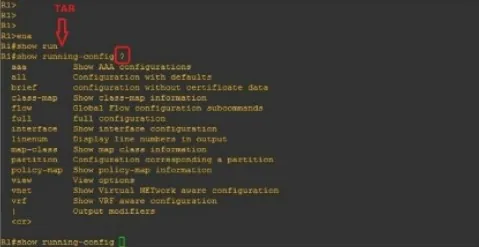
b) Selezionare un nome dispositivo (Nome host)
Per modificare il nome di un Router o Switch, tutto ciò che devi fare è inserire questo comando: (lo vedrai nell'immagine successiva)
Router(config)#nome host ROUTER_NAMEROUTER_NOME(config)#c) Proteggere l'accesso al Router
To protect your Router against unauthorized access, let’s look into how we can set up a password in privilege mode (#). Follow this straightforward process to complete the task:
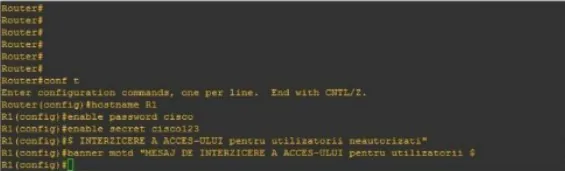
Router(config)#nome host R1R1(config)#enable password cisco oR1(config)#abilita segreto cisco123Utilizzando questo comando verrà impostato un banner di avviso per chiunque tenti di accedere al dispositivo, avvisandoli delle potenziali conseguenze.
R1(config)#banner motd "ACCESSO NON AUTORIZZATO NEGATO"If your query is regarding the distinctions between an “enable password”, and a “secret enable,” you’ve come to the right place. Here’s what sets them apart:
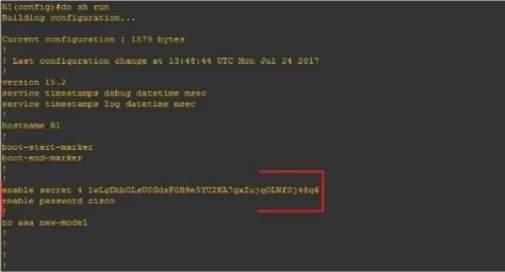
Una configurazione (#enable secret) è codificata mentre l'altra (#enable password) rimane non crittografata.
Let’s begin by configuring the Router for network access (reachability) using the following topology:
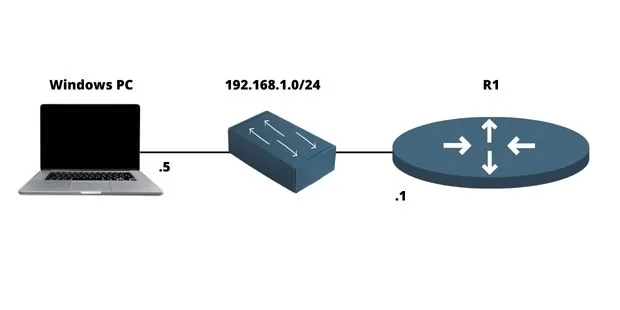
d) Configurare un indirizzo IP sul Router
Un Router è uno strumento inestimabile che ci consente di interconnettere più reti senza problemi tramite varie porte, tipicamente due o tre. Ci riferiamo a una porta come lo spazio fisico in cui un cavo può essere collegato. Per quanto riguarda il suo lato logico corrispondente, lo identifichiamo come un'interfaccia.
Per ricapitolare:
- Porta = Fisico
- Interfaccia = Logico
Ad esempio, configureremo un indirizzo IP (logico) sull'interfaccia e lo collegheremo fisicamente a una porta tramite cavo.
Affinché qualsiasi comunicazione avvenga all'interno della rete, queste interfacce richiedono un indirizzo IP e devono essere abilitate, cioè accese. Come illustrato nella figura, puoi facilmente configurare un indirizzo IP su un'interfaccia di rete:
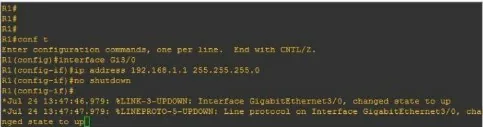
R1(config)#interfaccia FastEthernet0/0R1(config-if)#ip indirizzo 192.168.1.1 255.255.255.0R1(config-if)#no spegnimentof) Configurare l'accesso remoto su un Router (Telnet, SSH)
Telnet
Telnet sends session data without encryption. This historical lab example illustrates its configuration; use SSH for administration of real devices.
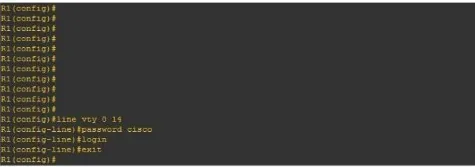
R1(config)#linea vty 0 14R1(config-line)#password ciscoR1(config-line)#accessoTo get started, we’ll need to enter our virtual lines (a total of 15), set the password (“Cisco”), and then initiate the Telnet process #login.
SSH
To safely connect to a local area network or Internet device remotely, SSH is the ideal protocol. To configure this on Cisco machines, it’s necessary to take certain steps:
- Stabilire un login e una password personali.
- Stabilire un nome di dominio
- Per garantire la massima sicurezza, è essenziale generare combinazioni di chiavi pubbliche e private.
- Per abilitare il processo delle linee virtuali (vty), utilizzare il comando #login local.
Nella figura sotto, puoi vedere un esempio della configurazione SSH su un Router Cisco:
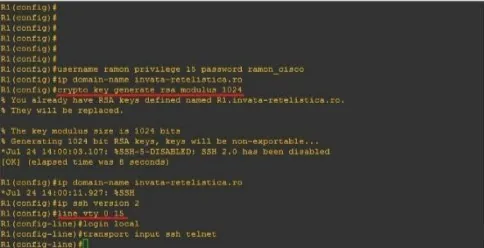
R1(config)#nome utente admin privilegio 15 password admincisco321R1(config)#ip nome-dominio my.home.labR1(config)#crypto key generate rsa modulus 2048R1(config)#ip ssh versione 2R1(config)linea vty 0 15R1(config-line)#login localeR1(config-line)#transport input sshPer riassumere
Il Router è essenziale device in any computer network because it interconnects multiple networks together. It has different networking protocols enabled (like RIP and OSPF) that assist him with the interconnection process. It also offers many different configurations for security purposes (like passwords on Virtual lines). In this article, we’ve learned how to set up an IP address on the Router, as well as for remote access (Telnet & SSH). We’ve also learned about some of the most important configurations un amministratore di rete dovrebbe sapere.
SSH configuration reference
Allowing SSH alone on virtual terminal lines prevents Telnet access. Check supported authentication and cryptographic settings for your actual release in Cisco’s SSH configuration documentation. Keep a console or another authorised recovery path while changing remote access settings.

César Daniel Barreto è uno stimato scrittore ed esperto di cybersecurity, noto per la sua approfondita conoscenza e per la capacità di semplificare argomenti complessi di sicurezza informatica. Con una vasta esperienza nel campo della sicurezza delle reti e della protezione dei dati, contribuisce regolarmente con articoli e analisi approfondite sulle ultime tendenze in materia di tendenze della cybersecurity, educando sia i professionisti che il pubblico.
 Italian
  English
  German
  Danish
  Swedish
  Romanian
  Thai
Thai  Vietnamese
  Japanese
  Dutch
Dutch  Korean
  Arabic
  Hungarian